Synchronizing Scenes Views
To facilitate side-by-side comparisons of different datasets, you can automatically synchronize the zoom factor, position, and window leveling between the 2D or 3D views in multiple scenes in the workspace.
Synchronized scenes views
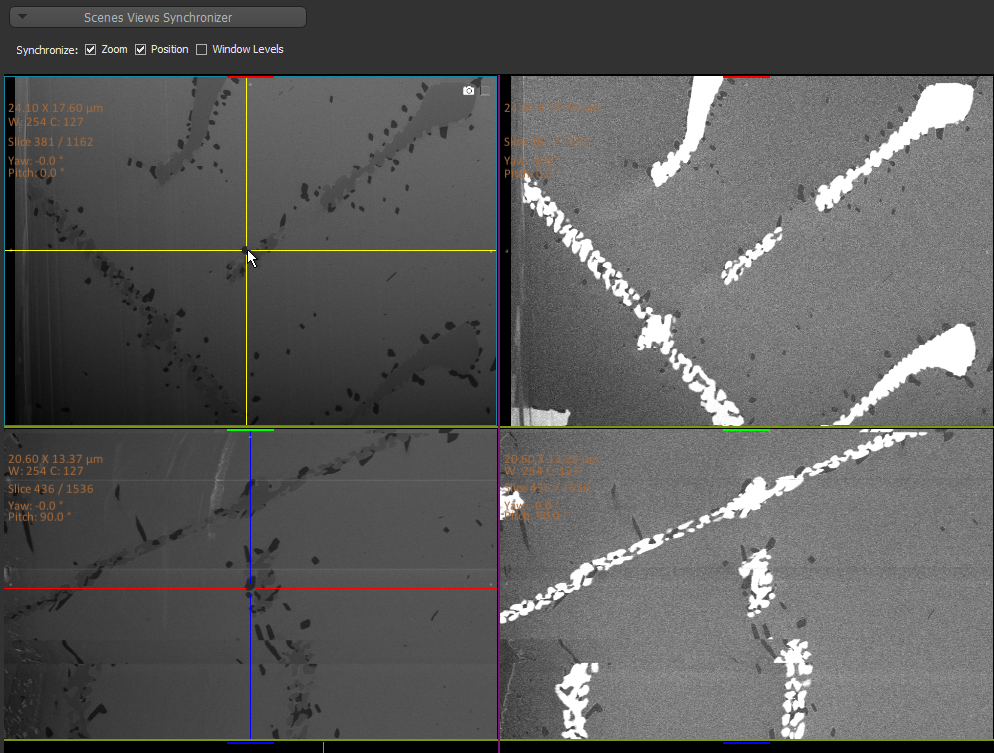
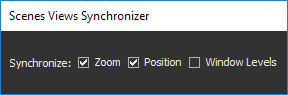
The synchronize options are available in the Scenes Views Synchronizer panel, shown below.
Scenes Views Synchronizer panel
| Description | |
|---|---|
|
Zoom* |
If selected, changes to the zoom factor of a view in a synchronized scene will be applied to all other co-planar views in all other scenes in the workspace. You can keep the images within a scene centered while you inspect different views of a dataset by using the Track and Zoom at Center option (see Using the Manipulate Tools). |
|
Position |
If selected for the 2D views, changes to the image stacking and pan position of a 2D view in a synchronized scene will be applied to all other co-planar views in all other scenes in the workspace. If selected for a 3D view, changes to the rotation, pan position, and zoom of the 3D view in a synchronized scene will be applied to all other 3D views in all other scenes in the workspace. You can keep the images within a scene centered while you inspect different views of a dataset by using the Track Center option (see Using the Manipulate Tools). |
|
Window Level* |
If selected, changes to window leveling in a synchronized scene view will be applied to all other scenes in the workspace. NOTE For best results, synchronized scene should contain datasets saved in the same primitive data type. |
* Available only for 2D views.
 How to Synchronize 2D Scenes Views
- In a multi-scene workspace, select a 2D view in the scene to which the 2D views of the other scenes will be synchronized.
- Select the required Synchronize options — Zoom, Position, Window Level — in the Scenes Views Synchronizer panel.
You should note that the synchronization of the zoom factor and position is based on absolute coordinates and only images that are related to each other spatially should be synchronized.
- Synchronize the 2D views of other scenes if you want the synchronization to be applied to both directions, optional.
How to Synchronize 3D Scenes Views
- In a multi-scene workspace, select the 3D view to which the 3D views of the other scenes will be synchronized.
- Select the Position option in the Scenes Views Synchronizer panel.
In this mode, the rotation, pan position, and zoom of the 3D view in a synchronized scene will be applied to all other 3D views in all other scenes in the workspace.
- Synchronize the 3D views of other scenes if you want the synchronization to be applied to both directions, optional.


